
Set up moderation — approve photos first
With moderation on, every new upload waits until you let it through. Good for the big screen, and for sensitive events.
Five steps to a reviewed gallery
The setting lives in Settings, the reviewing happens in Gallery. Moderation is included in every plan.
 Step 1
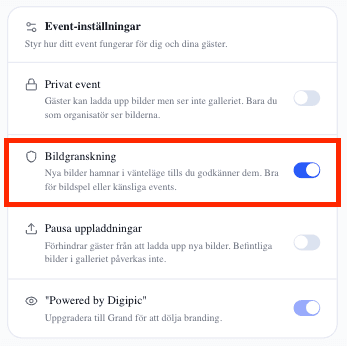
Turn on Photo moderation in the settings
Open the event, go to the Settings tab and turn on Photo moderation. From now on every photo a guest uploads waits for review instead of going straight into the gallery. Your own uploads, and your co-organizers', are approved automatically.
- Turn it on before you share the QR code. Photos already uploaded aren't affected when you switch moderation on afterwards.
- Guests are told what's happening: after uploading they see a note that the organizer reviews the photos before they appear.
- Moderation is included in every plan, the free one too.
 Step 2
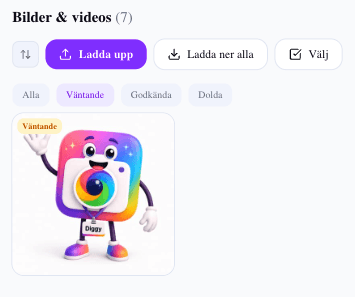
Review in the Gallery tab
New photos collect under the Gallery tab. At the top are the filters All, Pending, Approved and Hidden. Pending is your work list — it holds exactly the photos nobody but you and your co-organizers have seen.
- Open a photo to see it large before you decide. You can approve or hide it right there.
- The Hidden filter is the archive of what you said no to. Nothing is deleted when you hide — you can always approve it later.
 Step 3
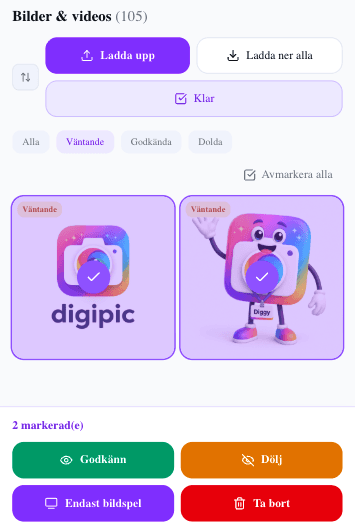
Approve or hide several photos at once
Press Select and mark several photos, or use Select all. In the bar that appears you choose Approve, Hide or Delete. After a party with 200 new photos, that's the difference between two minutes and half an hour.
- Approve in bulk and hide the exceptions. It's almost always faster than the other way round.
- Delete is permanent and can't be undone — use Hide when you only want the photo out of the gallery.
- On plans with the slideshow there's also Slideshow only: the photo shows on the big screen but not in the guest gallery or the download.
- Step 4
Keep up while the party is running
Moderation isn't a one-time job — photos keep coming in all evening. Go through Pending a few times during the night, ideally at natural breaks: after the starter, after the speeches, after the cake.
- Let a co-organizer own the reviewing during the evening, so you're not on your phone in the middle of dinner.
- Running the slideshow? Photos have to be approved to appear on screen, so a review round is also a refill for the slideshow.
- Leaving the review until the next day is fine — guests just won't see each other's photos in the meantime.
 Step 5
Combine it with a private event if you want
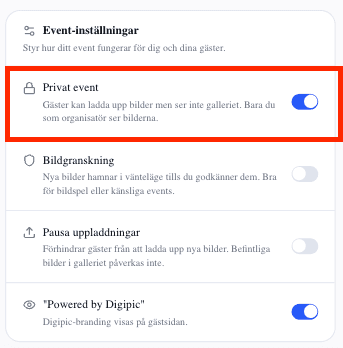
If no guest should see the gallery at all, turn on Private event in the same settings. Guests can still upload, but only you and your co-organizers see the photos. Moderation controls what shows; private event controls whether the gallery shows at all.
- A private event suits memorials, sensitive company events and surprises meant to be revealed afterwards.
- Pause uploads is the third switch in the same card — it closes uploading entirely without touching the photos already in.
- Turn private on mid-party and the gallery disappears for guests immediately.
When is moderation right — and when is it in the way?
Moderation gives you control, but it costs spontaneity. Here's how to choose, and how it combines with the other settings.
Turn it on when photos hit a big screen
The strongest reason for moderation is the projector. The moment photos are shown large in a room with a hundred people, it's someone else's moment going up on the wall, and a single badly timed shot from the dance floor is hard to take back.
With moderation on, the slideshow becomes a curated stream: only what you let through is shown, and you can hand the button to a co-organizer while you're busy.
Turn it on when the event is sensitive
Memorials, company events destined for the intranet and events with children are all cases where you want to say no before the photo shows, not after.
The same goes for a mixed guest list — colleagues, family and friends at the same party rarely agree on what's fun to put on display.
Leave it off when the flow is the whole point
At a relaxed party, a trip or a mingle, the best experience is the photo appearing in the gallery immediately, so guests see each other's shots while the evening is still going. That's also what drives more uploads: people upload more when they see something happening.
You can always go through the gallery afterwards and hide individual photos. The only difference is that they were visible for a while.
Three settings that do different things
Photo moderation: new photos wait for your approval before guests see them. Uploading works as usual.
Private event: guests can upload but see no gallery at all. Only you and your co-organizers see the photos.
Pause uploads: guests can't upload any more photos. What's already in the gallery is unaffected.
Remember the download
The zip of all photos contains approved photos only. If you're running moderation: go through Pending one last time before you request the download, or the photos still waiting will be missing.
Photos marked Slideshow only do come along in the download, but in their own folder called bildspel, while the guest-visible photos sit in the folder bilder.
Common questions about moderation
What organizers wonder before switching it on.
Can the guest tell that their photo is waiting for approval?
Yes. When the upload finishes, the guest sees a message saying the organizer reviews the photos before they appear, so nobody thinks the upload failed.
Do I have to approve my own photos?
No. Photos uploaded by you or your co-organizers are approved automatically. Moderation only applies to guest uploads.
What happens to photos already uploaded when I turn moderation on?
They stay approved and keep showing. Moderation applies going forward, so switch it on before you share the QR code if you want to review everything.
What's the difference between Hide and Delete?
Hide removes the photo from the gallery but keeps it — you'll find it under the Hidden filter and can approve it later. Delete removes the photo permanently and can't be undone.
Do pending photos come along in the download?
No. The zip contains approved photos only. Go through Pending before you request the download so nothing is left behind.
Is moderation included in the free plan?
Yes. Moderation is included in every plan, the free one too. Only the live slideshow and removing branding require a higher plan.
Can a co-organizer review the photos for me?
Yes, and it's often the best setup. A co-organizer can approve, hide and delete exactly like you — invite someone who's on top of the evening anyway.
What does Slideshow only mean?
That the photo shows on the big screen but not in the guest gallery. Handy for shots that work in the moment on screen but don't need to stay in the album. It's available on the plans that include the slideshow.
Read next
More on controlling what your guests see.
Create the event and decide what shows
Moderation is included in every plan — the free one too.