
Live slideshow on a TV or projector — how to connect
The photos your guests upload appear on the big screen while the party is running. You need a screen, a computer and the PIN.
Six steps to photos on the big screen
The slideshow lives in the Share tab of your event and is included in the Event and Grand plans.
 Step 1
Get the slideshow link and the PIN
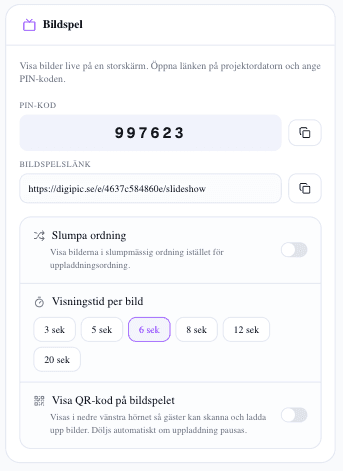
Open the event, go to the Share tab and scroll to the Slideshow card. Two things there matter: the slideshow link, which ends in /slideshow, and a four-digit PIN. Copy both to the computer that will be connected to the screen.
- The slideshow is included in the Event and Grand plans. On a lower plan the card is there, but with a padlock and an upgrade button.
- Easiest route: email the link to yourself and open the email on the projector computer — no long address to retype.
- The PIN protects the slideshow. Only give it to whoever is running the screen.
- Step 2
Set duration, order and the QR code
The same card decides how the slideshow behaves. Slide duration can be set between 3 and 20 seconds. Shuffle mixes the photos instead of showing them in upload order. Show QR code puts the event's QR code in the bottom left corner so guests can scan straight from the screen.
- 6 seconds is a good starting point. Shorter feels frantic during dinner, longer feels static at a mingle.
- Shuffle is better once a lot of photos are in — otherwise guests see the same morning shots on every lap.
- The QR code on screen is the best reminder there is: a guest sees their own photo appear and scans to add more. It hides automatically if you pause uploads.
- Step 3
Connect the computer to the screen
Connect the computer to the TV or projector over HDMI, or cast via Chromecast or Apple TV. Choose to mirror or extend the display and check that the right screen gets the picture before guests arrive. Test in the venue, with the cable you actually plan to use.
- An HDMI cable beats wireless every time. Casting gets shaky once the wifi is loaded with a hundred phones.
- Bring an adapter. Newer laptops often have only USB-C, and the venue's cable is almost always HDMI.
- Check the aspect ratio — a 16:9 projector against a 4:3 screen gives you black bars and a cropped image.
 Step 4
Open the link and enter the PIN
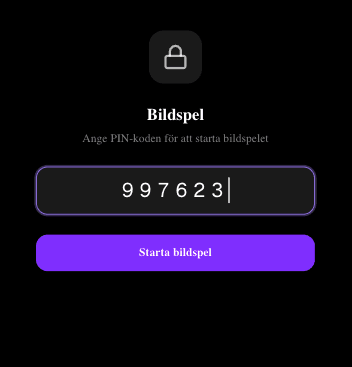
Go to the slideshow link in the browser on the connected computer, type the PIN and press Start slideshow. It begins immediately. If no photos are in yet you get a waiting screen that switches to photos automatically as soon as the first upload lands.
- Use a normal browser window — not private mode, which just means typing the PIN again.
- No login is needed on this computer. The PIN is all it takes, so a co-organizer can run the screen.
- New approved photos are fetched continuously. You never need to reload the page during the evening.
- Step 5
Go fullscreen and lock the computer down for the night
Press the fullscreen button and the browser frame disappears while the controls fade out. In the controls you can pause and step forward and back manually — handy when someone wants a photo held a little longer. Then set the computer so it can't fall asleep.
- Turn off the screensaver and automatic sleep, and plug the computer in. A sleeping laptop is the most common cause of a black screen mid-dinner.
- Turn off notifications. A phone number in a chat notification on a three-metre screen isn't the memory you want to hand your guests.
- If the slideshow will run unattended all evening: close every other tab, so no auto-refresh takes over the screen.
- Step 6
Decide what's allowed on screen
The slideshow shows approved photos. With moderation on that means only what you've let through reaches the screen — and that you need to approve regularly to keep it topped up. On the slideshow plans you can also mark individual photos as Slideshow only, so they appear on screen but not in the guest gallery.
- Turn moderation on before the party if the big screen sits in a room with mixed guests — easier than racing to hide a photo that's already been shown.
- Let a co-organizer own the reviewing during the evening, so the screen keeps filling without you leaving the table.
- If you pause uploads the slideshow keeps showing what's already in, but the on-screen QR code is hidden.
How to make the slideshow the evening's second party
A slideshow that works technically is one thing. A slideshow guests actually watch is another. Mostly it comes down to placement, light and timing.
Placement: where people stand, not where the projector fits
The usual mistake is putting the screen wherever there happens to be a wall. Put it where guests already look: behind or beside the dance floor, by the bar, or at the short end of the dinner table.
An ordinary TV on a stand or a sideboard often beats a projector in a lit room. A projector needs darkness for saturated colour, while a TV copes with lamplight and evening sun.
Light and contrast
Running a projector: kill the lamps nearest the screen and don't aim spotlights at it. The screen can handle candles in the room, but not a spotlight straight on.
If the venue has big windows, the time of day matters. A slideshow that looks brilliant in the three o'clock test can be unreadable when the sun is low at six — and the other way round.
Timing through the evening
Let the slideshow run during drinks and mingle, pause it for the speeches and toasts, and start it again for dessert. That way the screen becomes a talking point rather than a distraction while someone is speaking.
Start it early even if there are only ten photos. Seeing the first ones appear is what makes guests realise they can contribute.
Common technical pitfalls
The computer sleeps. Turn off sleep and the screensaver, and keep it plugged in all evening.
The wifi saturates. A hundred phones uploading at once makes wireless casting stutter — HDMI solves it.
The wrong display gets the picture. Check mirroring or extended desktop before guests arrive, not while everyone is watching.
Notifications and updates. Turn notifications off and postpone system updates before the evening starts.
After the party
The slideshow is a showing, not an archive. The photos stay in the event gallery once the screen goes dark, and you download them as usual in a zip when the party is over.
Photos you marked Slideshow only come along in the download in their own folder, so you can go through them separately before sharing with guests.
Common questions about the live slideshow
What organizers ask before plugging in the projector.
Which plans include the live slideshow?
The slideshow is included in the Event and Grand plans. On Free and Starter the card is visible with a padlock, and you can upgrade straight from there.
Do I need to log in on the computer at the projector?
No. The slideshow link opens with the PIN instead of a login, so a co-organizer or a technician can run the screen without you handing over your password.
Do new photos appear automatically?
Yes. The slideshow keeps fetching newly approved photos while it runs. You never need to reload the page during the evening.
Can I control how long each photo is shown?
Yes, between 3 and 20 seconds in the slideshow card. 6 seconds is a good starting point for a dinner.
Can I show the QR code on screen?
Yes. Turn on Show QR code and the event's code appears in the bottom left corner with a prompt to scan. It hides automatically if you pause uploads.
What happens if the internet drops mid-evening?
The slideshow needs a connection to fetch new photos. If the computer loses the network the refill stops, but as soon as the connection is back it carries on fetching new photos as usual.
Can I skip forwards or back manually?
Yes. Move the mouse and the controls appear, letting you pause and step forwards and back. Handy when someone wants a photo held a little longer.
Can I stop a particular photo from reaching the big screen?
Yes. With moderation on, only photos you approved are shown, and you can hide a photo at any time. You can also mark photos as Slideshow only if they should appear on screen but not in the guest gallery.
Read next
More about the screen, the photos and the plans.
Set up the slideshow for your next party
Your guests' photos on the big screen while the evening runs — no app, no USB stick.