
Invite co-organizers and share the load
You should be at the party, not in your phone. Invite someone who can answer questions and approve photos while you're busy.
Five steps to a team around your event
It all happens under Settings on your event. Only the person who created the event can invite and remove.
 Step 1
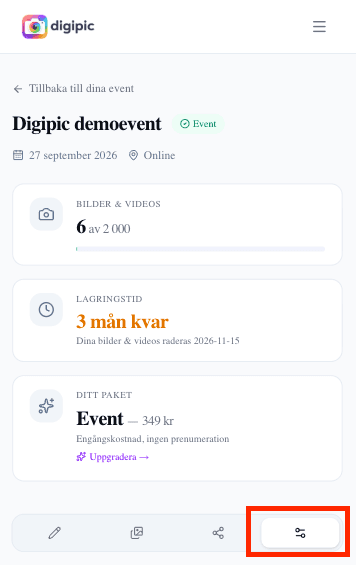
Open Settings on your event
Log in, pick the event under My events and go to the Settings tab. The Team members card sits at the bottom. That's where the whole invite flow lives — there is no separate page for it.
- The invite field only shows for the person who created the event. Co-organizers see the same card, but cannot invite anyone else.
- Co-organizers are included in every plan, the free one too. You don't need to upgrade to share the work.
 Step 2
Enter the email address and press Invite
Type the person's email address in the field and press Invite. If they already have a Digipic account on that address, the event shows up among their events the next time they log in. If they don't have an account, we send an email with a link to create one — the invite waits until it's claimed.
- Use the address the person actually reads. The invite is tied to the email address, not to a phone number.
- Invite several people by repeating the step. There's no limit on how many co-organizers an event can have.
- Typed the wrong address? Just remove the row and invite again.
 Step 3
Follow the invite status
Every person in the list shows where the invite stands. Invited – no account yet means the email has gone out but the account isn't created. Awaiting response means the account exists but the invite hasn't been claimed. Accepted means they're in and can start working.
- Stuck on Awaiting response? Ask them to log in — the invite is claimed automatically when they do.
- The email can land in spam. A quick message in the chat saying an invite is on its way usually solves it.
- Step 4
Agree on who does what
An accepted co-organizer has the same hands on the event as you: upload and delete photos, approve or hide them in moderation, change event settings, share the link and the QR code, run the slideshow and request the download of all photos. Two things are yours alone — inviting or removing co-organizers, and deleting the whole event.
- During the party: let one person own moderation and the slideshow, so you're not stuck on your phone between the speeches.
- After the party: let whoever gets to a computer first request the download — the zip link is emailed to whoever ordered it.
- Agree on who answers when a guest wants a photo taken down. It's faster than asking each other mid-evening.
- Step 5
Remove someone — or leave yourself
Press Remove next to a row to revoke an invite or remove a co-organizer. Access disappears immediately, but the photos they uploaded stay in the event. If you're a co-organizer yourself and want to step off, the Leave event button is in the same card.
- Removing someone never deletes photos — not their uploads, and nothing else in the gallery.
- If you leave an event yourself, you need a new invite to come back.
- Tidy up the list once the event is over, especially if you extend storage and the gallery sticks around for a while.
Who should you invite — and why even one more?
What matters isn't how many people have access, but that someone other than you can act when your hands are full. Here are the setups that work.
Weddings: the toastmaster or a sibling
The couple is the worst possible support desk at their own wedding. You're in the portraits, in the mingle and at the table — which is exactly when guests ask where to upload and why their photo isn't showing.
Invite the toastmaster or a sibling who is on top of the evening anyway. They can answer on the spot, approve new photos if you're running moderation, and restart the slideshow when the projector acts up.
Company parties and conferences: a second person on the team
At work events the risk is that everything hangs on one person who happens to be off sick on the day. A co-organizer from the same team makes the event independent of a single calendar.
It's also the practical answer to content responsibility: someone needs to be able to hide a photo quickly if it doesn't belong on the intranet afterwards, without first tracking down whoever created the event.
Trips and group travel: one per group
On a longer trip it's rarely the same person holding things together every day. Invite one co-organizer per group or per leg, so whoever is there can post the day's photos and answer questions without it going through one person back home.
Sharing a password is not the answer
The fastest fix feels like sending your password in the chat. Don't. A shared password can't be taken back, you never see who did what, and it stays in that chat long after the event is over.
An invite is tied to one person, can be removed with one click, and grants access to exactly one event — not your other events, your account or your receipts.
What a co-organizer cannot do
Two things are reserved for the person who created the event: inviting and removing co-organizers, and deleting the whole event. That means nobody can lock you out of your own event, and a co-organizer who walks away can't take the team with them.
Payment and plan also belong to the account that created the event. A co-organizer can't upgrade the plan or extend storage on your behalf.
Common questions about co-organizers
What organizers wonder before inviting someone.
Does it cost anything to invite co-organizers?
No. Co-organizers are included in every plan, the free one too, and there's no per-person fee. There's also no limit on how many you can invite to the same event.
Does a co-organizer need a Digipic account?
Yes, but it's created in the same flow. If they don't have an account we email a link to create one, and the invite is claimed automatically once the account exists. Guests who only upload photos still need no account at all.
Can a co-organizer see my other events?
No. An invite covers exactly the event you invited them to. Your other events, your account and your receipts are still only yours.
Can a co-organizer delete the event?
No. Deleting the whole event and managing the team are reserved for the person who created it. A co-organizer can delete individual photos, just like you.
What happens to the photos if I remove a co-organizer?
Nothing. Access disappears immediately, but the photos they uploaded stay in the event as usual.
Can a co-organizer download all the photos?
Yes. The zip download of the whole event can be requested by you and by your co-organizers, and the link is emailed to whoever ordered it.
Can I give someone limited access, for example only approving photos?
Not today — a co-organizer has full access to the event, except managing the team and deleting the event. So invite people you'd trust with the photos, the same way you'd trust them with the camera.
Read next
Where to go once there are several of you running the event.
Create the event and invite your team
Free to get started. Co-organizers are included in every plan.